
Cursor
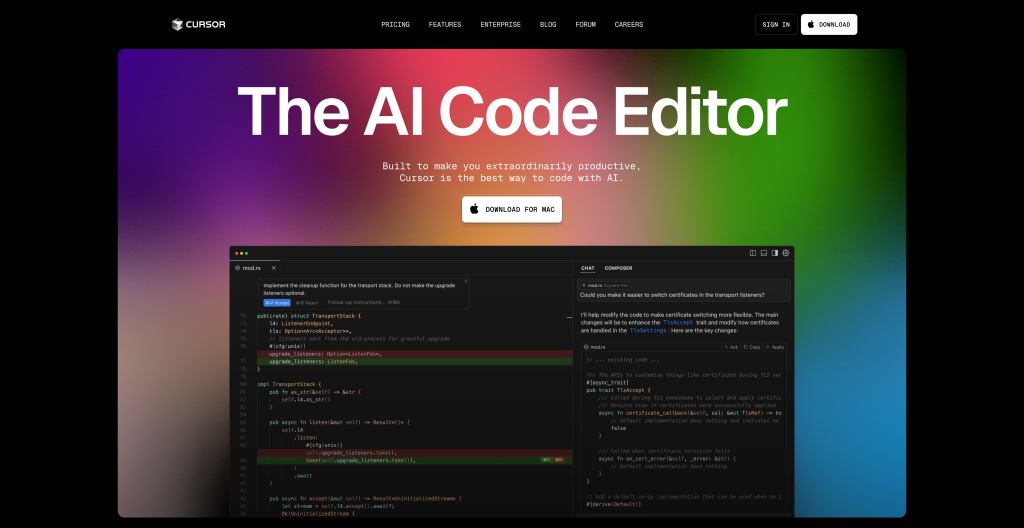
Cursor: AI-Enhanced Coding and Collaboration, All in One Editor
If you’re a software engineer or coding enthusiast who’s always on the lookout for ways to save time and reduce friction, Cursor might just become your new favorite coding companion. This powerful code editor and AI assistant rolls context-aware chat, advanced autocompletion, and integrated debugging tools into a single, cohesive environment. Whether you’re a solo developer, part of an agile team, or building large-scale enterprise software, Cursor’s focus on speed and usability can make a real difference in your daily workflow.
1. What Is Cursor?
Cursor is an AI-assisted coding platform that combines traditional editing capabilities (like a powerful IDE) with next-generation features such as multi-line code completion, intelligent chat, and an agent mode that automates repetitive tasks. At its core, Cursor is about bridging the gap between code and conversation—letting you chat with your codebase, request rewrites, debug errors, and even reference entire files with a simple “@” symbol.
2. Notable Features
- Autocomplete & Multi-Line Edits
- Cursor’s AI can predict and suggest more than just the next token—it offers entire snippets, taking recent edits into account.
- “Smart Rewrites” instantly corrects typos or suboptimal code, so you can type without worrying about minor mistakes.
- Cursor Chat
- Chat with an AI that has immediate visibility into your current file and cursor location, making queries like “Is there a bug here?” a breeze.
- Use Ctrl+Shift+L (or “@.”) to highlight specific code blocks, instantly adding them to the chat’s context.
- Codebase-Wide Search
- Employ “@Codebase” or hit Ctrl+Enter to ask questions about your entire project.
- The AI uses custom retrieval models to surface relevant files or references, eliminating endless manual searching.
- Up-to-Date Web Access & Docs
- With “@Web,” the AI can fetch up-to-date information from the internet, even referencing external documentation.
- Cursor’s built-in “@Docs” function helps you quickly consult popular libraries—or add your own custom documentation for ultra-specific references.
- Agent Mode
- This advanced mode can complete tasks end-to-end, writing and running commands, fixing lint errors, and handling loops with minimal user intervention.
- The programmer remains in the loop, approving commands or edits before they’re applied—so you stay in control.
- Intuitive Shortcuts
- Ctrl+K for quick edits: highlight code and describe how you want it changed, or generate brand-new code from scratch.
- Quick Question: Get instant AI insights on any selected snippet, perfect for clarifying functions or debugging small sections.
3. Who Benefits from Cursor?
- Solo Developers & Freelancers: Speed up coding tasks, reduce context switching, and handle multiple technologies without learning separate tools.
- Agile Teams: Collaborate efficiently by letting AI manage common tasks like bug fixes, documentation lookups, and code generation.
- Enterprises: Incorporate secure SOC 2–certified software while standardizing development practices across large teams.
- Students & Hobbyists: Focus on learning concepts or building side projects, with AI automatically handling rote details and repeated patterns.
4. Collaboration & Automation Superpowers
- Shared Context
- The AI can see your codebase at a glance, so it knows if you changed a variable name or created a new function in a different file.
- This reduces the headache of re-describing changes across multiple files or modules.
- Terminal Integration
- Generate shell commands in plain English through Ctrl+K in the terminal.
- Cut down on repetitive or error-prone command-line tasks, from building containers to installing dependencies.
- Multi-Language Flexibility
- Whether you’re writing JavaScript, Python, Rust, or Go, Cursor’s AI suggestions adapt to your chosen language—keeping you efficient across stacks.
5. A Closer Look at Chat
- Visual Context: You can drag images directly into the chat, letting the AI interpret visual content or help you debug UI mockups.
- Instant Apply: Found a code snippet in chat that you love? Hit the play button above the chat codeblock, and Cursor automatically applies it to your editor.
- Error Loops: If the code snippet creates a lint or compile error, Cursor can fix it automatically—no more manual back-and-forth.
6. Why Choose Cursor Over Other Tools?
- End-to-End Developer Workflow: Combines code editing, debugging, and documentation lookup in one place—no constant switching to a separate browser or terminal.
- Reduced Busywork: Let AI handle repetitive refactoring or simple tasks like generating test cases, so you can focus on high-level problem-solving.
- Seamless Integration: Built for developer comfort, with shortcuts that feel intuitive if you’re already used to modern IDEs or text editors.
- Modern Collaboration: Embedded chat that references the entire codebase fosters a new level of synergy between devs and AI.
7. Potential Drawbacks
- Learning Curve: Though the chat UI is fairly intuitive, users new to AI-based coding might need time to fully leverage advanced features like agent mode.
- Connectivity Requirements: Some capabilities (like @Web or large model queries) depend on reliable internet to fetch data or run transformations.
- Codebase Size Limits: Extremely large or complex projects could stretch the AI’s context capabilities—though Cursor’s “smart retrieval” helps mitigate this.
8. Final Thoughts
In an era where code bases grow more complex and developer time is increasingly precious, Cursor stands out as an innovative solution to build software faster. Its blend of contextual chat, code searching, and AI-driven suggestions not only saves time but encourages a more creative approach to coding. If you’re ready to adopt an AI partner that genuinely amplifies your development flow—rather than just automating trivial tasks—Cursor could be the perfect fit.
Ready to try it yourself? Head over to their website, download Cursor for free, and begin exploring its powerful suite of features. You might just discover a new way to code—one where you and AI team up to create better software in less time.
Pro Tip: Don’t forget to experiment with the short commands like Ctrl+K in different environments (editor vs. terminal). Over time, you’ll uncover shortcuts and hidden capabilities that can level up your productivity even further.